Provision a Service
This guide walks you through provisioning a new managed service instance.
Prerequisites
- You're logged in to the Servala Portal
- You have an organization selected
- Your organization has access to the service you want to provision
Steps
1. Browse the service catalog
Navigate to the Services section from the portal navigation.
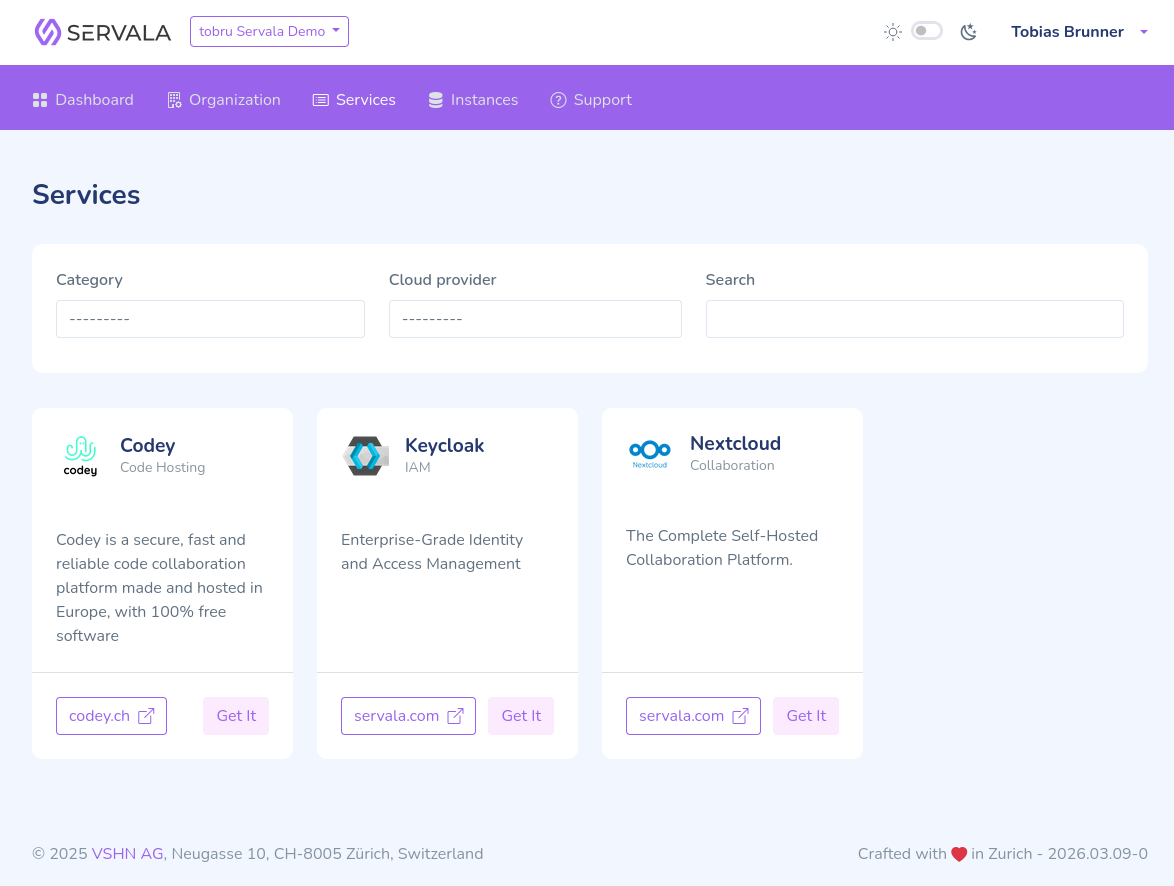
Browse or search for the service you need. Services are organized by category.
2. Select a service
Click on the service to see its detail page. Here you'll find:
- A description of the service
- Available offerings (provider + zone combinations)
- Links to documentation
3. Choose a provider and zone
Select the offering that matches your requirements. Consider data residency, compliance, and proximity to your applications.
4. Configure the instance
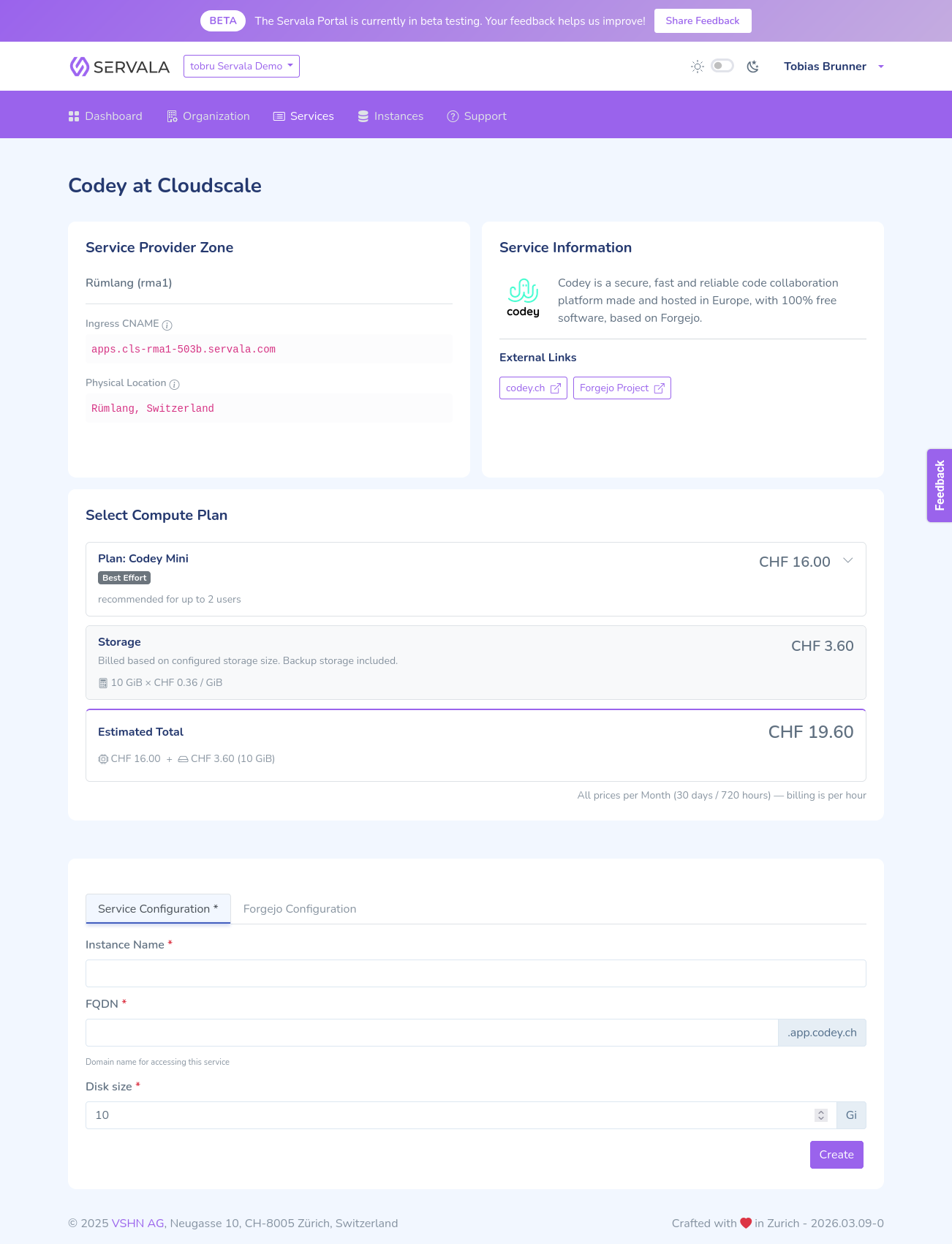
- Enter a display name for your instance.
- Configure service-specific parameters using the form.
- Custom mode shows a simplified set of common options.
- Expert mode (if available) shows all configuration options.
- Select a Compute Plan to define the resource tier (CPU, memory).
- Choose the SLA level (Best Effort or Guaranteed).
5. Create the instance
Review your configuration and click Create. The portal will begin provisioning your instance.
6. Wait for provisioning
Provisioning typically takes a few minutes. You can monitor the status on the instance detail page. Once ready, connection credentials will be available on the instance detail page.